
Home
Download
TV
GET APP
Open menu
Home
Tv
Castle App on TV: Enjoy Your Favorite Content on a Bigger Screen
Download Castle App
Many people prefer watching content on TV. Unfortunately, conventional satellite TV networks do not offer the convenience of a streaming app. They don’t provide on-demand content that you can watch anytime, anywhere. They also lack the features that enhance your viewing experience.
The Castle app gives you the same freedom and flexibility as a streaming app right on your TV. Access the Castle app on your TV and explore the vast library of content, just as you do on your phone.
What Is Castle TV?
The Castle entertainment streaming app is accessible on Android TVs. Users can use the app on their TVs the way they do on their phones.
All smart TVs running on Android version 6.0 or higher can install this app. This accessibility allows viewers to enjoy a larger-screen experience with better sound quality. They can access all the app's features on TV, including offline downloads, live TV, and more.
The best part is that the app provides all this flexibility at no extra cost.
Key Features of Using the Castle App on TV
Better Viewing
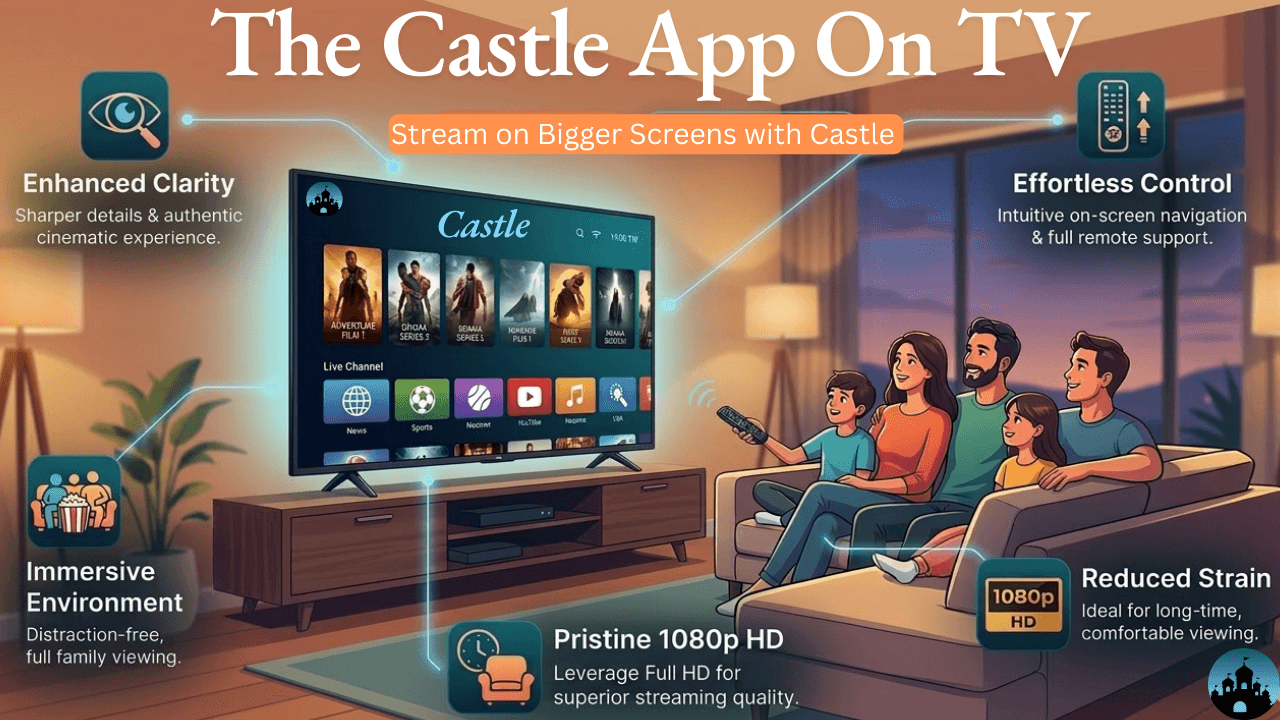
One of the primary benefits of using the Castle app on TV is a better visual experience. Enjoy sharp visuals and rich details on your big screen. When you watch movies or live sports on TV, you get a more authentic cinematic experience.
Easy Navigation
The app supports easy navigation on TV. Our team designed the interface for smooth performance on big screens. You can clearly see all options and features. Moving between content categories is also simple. The TV remote makes navigation easier. You can control the entire app remotely.
Theater-like Atmosphere
When you stream the Castle app on TV, you get an immersive viewing experience. Your whole family can sit together and watch movies on the big screen. By sitting comfortably on your couch/chair, you can maintain a healthy viewing distance.
On a phone, notifications can distract you. Also, a phone’s small screen often reduces immersion. Watching content on TV helps you stay more engaged with the story. After all, the large display fills your field of vision.
Leverage HD Streaming
The streaming app supports high-definition picture quality for premium users. A 1920 × 1080 resolution ensures sharper visuals, even on large screens. Viewers who access the Castle app on TV can take advantage of the Full HD feature.
Easy Long-Time Viewing
Holding a phone so close for long periods can strain your eyes. This type of viewing is not very comfortable for long sessions. If you want to watch a movie or a live cricket match, using the Castle app on TV is a more practical choice.
Live Channels on a Bigger Screen
The Castle app can serve as an alternative to traditional cable TV. It offers a wide range of live channels across different categories. You can access them directly on your Android TV. Open the app and navigate to the TV section. There, you will find channels from the sports, news, and entertainment categories. You will feel as if you are watching cable TV channels on your television.
How to Install the Castle App on a Smart Android TV
1. Download the Latest APK
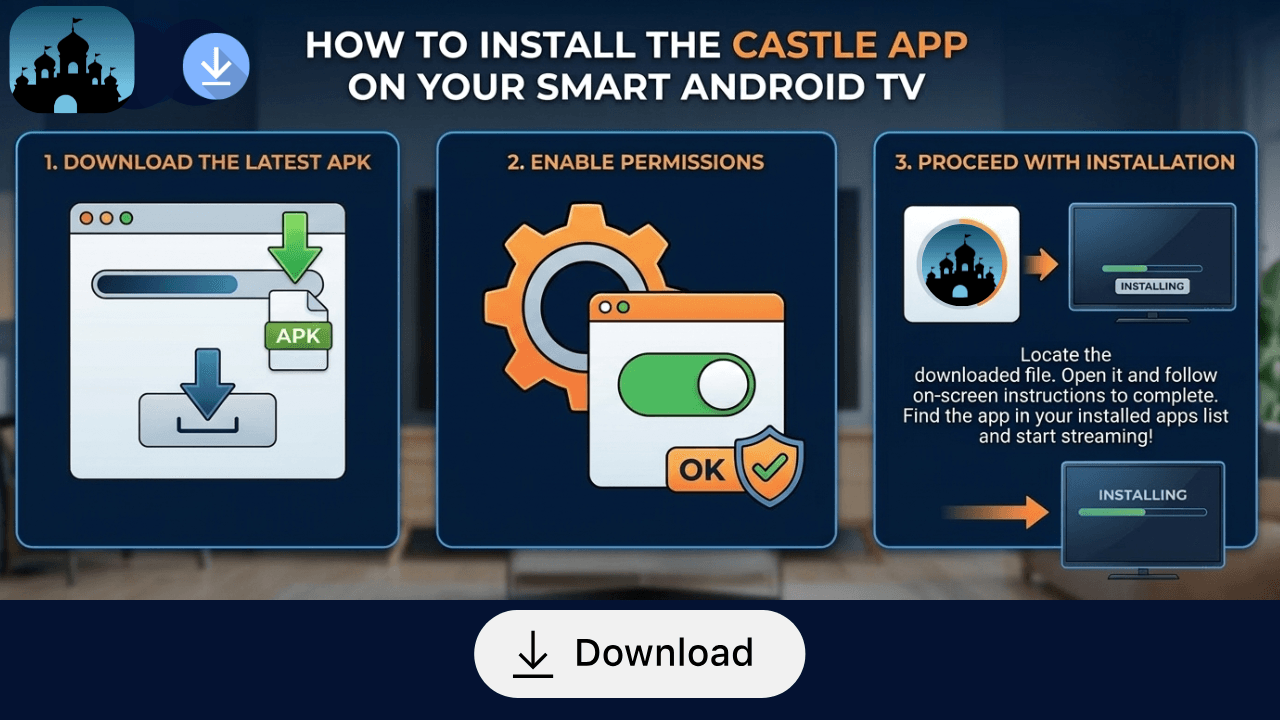
The process of installing the Castle app on TV starts with downloading the APK file. Download the latest Castle APK version from our official website.
Downloading will take a few seconds. You can use your smart TV’s browser to access our website and download the file. If you find this method inconvenient, download the APK on your computer first. Once downloaded, transfer it to your TV using a USB drive.
2. Enable Permissions
Android TVs often block installations from unknown sources by default. Installing APK files outside the Google Play Store requires permission. To enable it, open your TV settings and look for
Security & Restrictions or Apps
. Then select
Install Unknown Apps
and allow permission for the browser or file manager you are using.
Once this permission is enabled, the TV will allow the APK file to install successfully.
3. Proceed With Installation
Locate the downloaded file and open it to begin the installation. Follow the on-screen instructions until the installation is complete.
After installation, the application will appear in the list of installed apps. Open the app and stream content directly to your television.
If you want to stream the Castle app on TV, install it now. As a special offer, new TV users get a 5-day membership. This allows you to explore premium features and test the app before choosing a plan.
FAQs
Do I need to create an account to use the Castle app on TV?
You can stream the app on your TV without creating a profile. Nevertheless, we recommend logging in and creating a profile. It gives you a personalized experience and better content recommendations based on your interests.
Can I watch regional content on Castle TV?
Yes, the app lets you watch all types of content on TV. We offer a wide range of regional content, including movies, TV shows, and web series. We also have dedicated live TV channels featuring regional content.
Does the Castle app have a similar interface on TV?
Yes, the Castle app maintains a similar interface on TV as on mobile devices. Although we optimized a few options, the layout, navigation, and categories are easy to use on TV. People of all ages can easily use the app on TV.
Why does the Castle app sometimes buffer when streaming on TV?
The Castle app may sometimes buffer on TV due to slow or unstable internet connections, heavy network traffic, or an outdated app version. Maintaining a strong internet connection and keeping the app updated can help reduce buffering.
Can I watch live sports events on TV through the Castle app?
Yes, you can watch live sports on your Android TV using the app. We have dedicated live sports channels in our
'TV'
section. You can watch cricket, football, tennis, and other sports channels according to your taste.
Hemingway Score:
https://prnt.sc/rMot19Q15rNC
Copyscape:
https://prnt.sc/tUiQl71rUJJK